

How to Run Desktop Chrome on Android Tablet and Use Inspect Element Tools
Trying to inspect a webpage on an Android tablet can feel confusing because Chrome for Android looks familiar, but it does not include the same built-in DevTools panel that desktop Chrome has. You can still get very close to the desktop browsing experience, and you can inspect live pages on your tablet with the right setup.
The key is to separate two things:
Desktop site mode lets Chrome on Android request the desktop version of a webpage.
Inspect Element and DevTools require either remote debugging from a computer or a compatible browser workaround.
This guide shows both parts clearly. First, you will open websites in desktop mode on your Android tablet. Then you will activate developer options and use Chrome DevTools to inspect pages effectively.
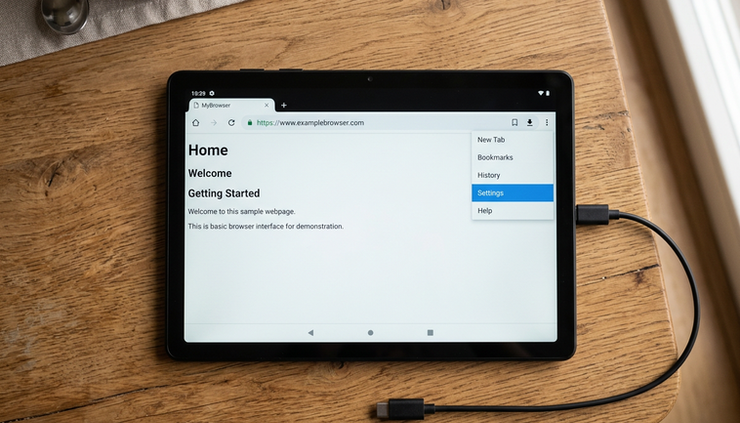
Know what desktop Chrome means on an Android tablet
Android tablets do not run the full desktop version of Google Chrome in the same way a Windows, macOS, Linux, or ChromeOS device does. Chrome for Android is still a mobile app, even when the screen is large.
When people say they want to run desktop Chrome on an Android tablet, they usually mean one of these goals:
Goal | Best method |
View the desktop version of a website | Use `Desktop site` in Chrome for Android |
Inspect HTML, CSS, network activity, and console logs | Use remote debugging with Chrome DevTools on a computer |
Inspect simple page elements directly on the tablet | Use a browser that includes mobile developer tools, where available |
For serious inspection work, the most reliable method is Chrome remote debugging. It connects your Android tablet to desktop Chrome on a computer, then lets you inspect the Android tab from the computer’s DevTools window.
What you need before you start
To follow the full process, keep these ready:
An Android tablet with Google Chrome installed
A USB cable that supports data transfer, not only charging
A Windows, macOS, Linux, or ChromeOS computer with Google Chrome installed
Access to the website you want to inspect
Permission to inspect and test the site, especially if it is not your own
If you only want to view the desktop version of a site, you need just the tablet. If you want Inspect Element, you will need the computer setup as well.
Step 1. Open the desktop site in Chrome on your Android tablet
Chrome for Android can request a desktop layout from most websites. This is useful when a site hides features on mobile, changes menus, or serves a simplified design.
1. Open Chrome on your tablet
Unlock your Android tablet and open the Chrome app.
If Chrome is not installed or is outdated, install or update it from the Google Play Store first. An updated browser reduces layout bugs and connection issues later.
2. Visit the website you want to inspect
Tap the address bar, enter the website URL, and wait for the page to load fully.
If the mobile version appears, that is normal. Most websites detect mobile browsers and serve a smaller layout by default.
3. Open the Chrome menu
Tap the three-dot menu in the top-right corner of Chrome.
On some tablets, the menu may sit closer to the address bar depending on screen size and orientation.
4. Select Desktop site
Tick the checkbox next to Desktop site.
Chrome will reload the page and request the desktop version from the website. On many sites, you will see fuller navigation, wider layouts, hover-style menus, or desktop-only buttons.
5. Confirm that the desktop version loaded
Check for signs that the page changed:
Menus appear across the top instead of inside a mobile hamburger icon
Content columns sit side by side
Buttons or panels that were hidden on mobile now appear
The website looks zoomed out or wider than the screen
If nothing changes, the website may use a responsive layout that looks similar on mobile and desktop. Some sites also ignore desktop requests.

Step 2. Make desktop site mode easier to use
Desktop pages can be hard to use on a touchscreen because they are designed for a mouse, keyboard, and larger screen. A few small adjustments can help.
Rotate the tablet to landscape mode
Landscape mode gives the page more horizontal space. Many desktop layouts break less when the screen is wider.
If rotation does not work, check whether Auto-rotate is turned on in Android Quick Settings.
Zoom carefully
Use pinch-to-zoom if the text is too small. Try not to zoom too far before inspecting, because zoom can make it harder to match what you see on the tablet with what appears in DevTools.
Use a keyboard and mouse if available
Many Android tablets support Bluetooth keyboards and mice. A mouse makes desktop menus easier to use, especially hover menus, dropdowns, sliders, and resize handles.
Keep the page open
If you plan to inspect the page later, leave the tab open in Chrome. Remote debugging works best when the exact page is already loaded on your tablet.
Step 3. Activate developer options on the Android tablet
Before desktop Chrome can inspect your tablet’s Chrome tabs, Android must allow debugging.
This does not add a visible Inspect Element button inside Chrome for Android. It enables your tablet to communicate with Chrome DevTools on a computer.
1. Open Android Settings
Go to Settings on your tablet.
The exact menu names may vary slightly across Samsung, Lenovo, OnePlus, Xiaomi, Pixel, and other Android tablets.
2. Go to About tablet
Find About tablet, About device, or About phone.
On some tablets, this sits under System.
3. Find the build number
Look for Build number.
If you do not see it, open Software information. Many Android versions place the build number there.
4. Tap Build number seven times
Tap Build number repeatedly until Android says developer mode has been enabled.
You may need to enter your PIN, password, or pattern.
5. Return to Settings and open Developer options
Go back to the main Settings screen. Look for Developer options.
It may appear under:
System
Additional settings
Advanced settings
Developer options
6. Turn on USB debugging
Inside Developer options, enable USB debugging.
Android will show a warning. Read it, then confirm if you are using your own computer and cable.
Only enable USB debugging when you need it. Turn it off afterwards if you do not use developer tools regularly.
Step 4. Connect the tablet to desktop Chrome
Now you can connect the tablet to a computer and inspect the page.
1. Connect the tablet with a USB data cable
Plug your Android tablet into the computer.
If the tablet only charges and does not appear to connect, the cable may be charge-only. Use a different cable that supports data transfer.
2. Allow USB debugging on the tablet
Look at the tablet screen. You should see a prompt that says something like Allow USB debugging.
Tap Allow.
If this is your personal computer, you can select Always allow from this computer. Avoid doing this on shared computers.
3. Open Chrome on the computer
On the computer, open Google Chrome.
In the address bar, type:
`chrome://inspect`
Press Enter.
4. Enable device discovery
On the `chrome://inspect` page, make sure Discover USB devices is enabled.
Your Android tablet should appear under the list of remote targets. Open Chrome tabs from your tablet should also appear.
5. Choose the page you want to inspect
Find the tab that matches the website open on your tablet.
Click inspect below that tab.
Chrome DevTools will open on your computer. It is now attached to the live page running on your Android tablet.

Step 5. Use Inspect Element effectively
Once DevTools opens, you can inspect the page almost like you would on a desktop website. The main difference is that the page is running on your Android tablet, while the tools appear on the computer.
1. Use the element picker
In DevTools, click the element picker icon. It usually looks like a cursor inside a box.
Then tap or click an area of the page preview. DevTools will highlight the matching HTML in the Elements panel.
This is the closest equivalent to right-clicking and choosing Inspect on desktop Chrome.
2. Read the HTML structure
The Elements panel shows the page’s HTML. Expand and collapse sections to understand how the page is built.
Look for common tags such as:
`header`
`nav`
`main`
`section`
`button`
`form`
`img`
When you select an element, Chrome highlights it on the page. This helps you confirm that you are editing the correct part.
3. Edit text and attributes temporarily
You can double-click text, class names, links, and attributes in the Elements panel.
These changes are temporary. They affect only your current browser session. Refreshing the page will reset them.
This is useful for testing:
Button text
Link paths
Image alt text
Form labels
Class changes
4. Test CSS changes in the Styles panel
The Styles panel shows CSS rules applied to the selected element.
Try changing values such as:
`font-size`
`display`
`margin`
`padding`
`color`
`background`
`width`
You can untick a CSS rule to disable it temporarily. This helps identify which rule causes a layout issue.
For example, if a menu is overflowing on tablet view, inspect the menu container and test changes to `width`, `position`, or `display`.
5. Use the Console carefully
The Console shows JavaScript errors and warnings. These can explain why buttons, forms, or menus do not work on Android Chrome.
You can also run small JavaScript snippets, but avoid pasting code you do not understand. The console runs code on the active page.
6. Check the Network panel
The Network panel shows files loaded by the page, such as scripts, stylesheets, images, fonts, and API requests.
Use it to find:
Slow-loading assets
Failed requests
Missing images
Blocked scripts
Large files that affect page speed
Reload the page while the Network panel is open to capture a fresh loading record.
7. Watch the page on the tablet
As you inspect, keep your tablet screen visible. Many changes you make in DevTools will appear live on the tablet.
This helps when testing touch behaviour, spacing, sticky headers, mobile menus, and desktop site rendering.
Step 6. Use a tablet-only workaround when you do not have a computer
If you do not have a computer nearby, your options are more limited.
Chrome for Android does not include the full DevTools interface. You cannot open the same Inspect Element panel directly inside Chrome on Android.
That said, you can try these alternatives:
Use View source by typing `view-source:` before a URL, though this only shows source code and not live DOM changes.
Use a third-party Android browser that includes developer tools, if one is available and trustworthy.
Use online HTML or CSS testing tools for small snippets.
Save the issue and inspect it later with remote debugging.
Be careful with third-party browsers and extensions. Install apps only from trusted sources, review permissions, and avoid entering sensitive data while testing.
Step 7. Troubleshoot common problems
Remote debugging usually works well, but a few issues are common.
The desktop site does not load
Try these fixes:
Refresh the page after selecting Desktop site
Open the site in a new tab and select Desktop site again
Clear the site’s cache and cookies
Rotate the tablet to landscape mode
Check whether the website uses the same responsive layout for all devices
Some websites control layout through screen width rather than browser request. In that case, desktop site mode may not look very different.
The tablet does not appear in chrome inspect
Check the basics first:
Confirm USB debugging is enabled
Unlock the tablet screen
Accept the Allow USB debugging prompt
Use a data cable, not a charge-only cable
Try another USB port
Restart Chrome on the computer
Restart the tablet if needed
On Windows, some Android devices may need manufacturer USB drivers. If the device is not recognised at all, check the tablet maker’s support page.
The USB debugging prompt does not appear
Unplug and reconnect the cable.
Then check the tablet’s USB mode. If a notification says the device is charging over USB, tap it and choose a file transfer or data mode if available.
You can also turn USB debugging off and on again inside Developer options.
The inspect button appears, but DevTools is blank
Close the DevTools window and click inspect again.
If it still fails:
Update Chrome on both devices
Reload the page on the tablet
Close extra tabs
Disconnect and reconnect the USB cable
Check that the tablet has a stable internet connection
Version mismatches can sometimes cause strange behaviour, so keeping Chrome updated helps.
CSS changes do not stay after refresh
That is expected. DevTools edits are temporary.
Copy any useful CSS changes into your real stylesheet, theme editor, app code, or content management system. DevTools is a testing tool, not a permanent editor.
Touch behaviour is hard to inspect
Use the real tablet screen for touch tests. DevTools can show structure and errors, but physical touch still matters.
Test:
Taps
Long presses
Scroll locking
Sticky headers
Dropdown menus
Forms and keyboards
Landscape and portrait layouts

Best practices for inspecting desktop pages on an Android tablet
For cleaner testing, follow a simple routine.
Start with the normal mobile page. Note the issue. Then switch to Desktop site and compare the layout. After that, connect remote debugging and inspect the exact element causing trouble.
Keep these habits:
Test in both portrait and landscape modes
Check whether the issue happens only after login or form input
Use the Console to look for errors before changing CSS
Use the Network panel if images, styles, or scripts fail to load
Copy useful DevTools changes before refreshing
Turn off USB debugging when you finish
If you are testing a website for Indian users, also check real network conditions where possible. A page that works well on fast Wi-Fi may feel different on mobile data or a weak connection.
What success looks like
You have the setup working when your tablet shows the webpage in Chrome, your computer shows that same tab under `chrome://inspect`, and DevTools highlights elements from the live tablet page.
From there, you can inspect HTML, test CSS, read console errors, and check network requests without guessing. You are not running full desktop Chrome inside Android, but you are using the most reliable way to bring desktop-level inspection tools to an Android tablet.
For quick viewing, use Desktop site. For real Inspect Element work, use Developer options, USB debugging, and `chrome://inspect`. That combination gives you a practical workflow for testing and fixing webpages on Android tablets.


Comments